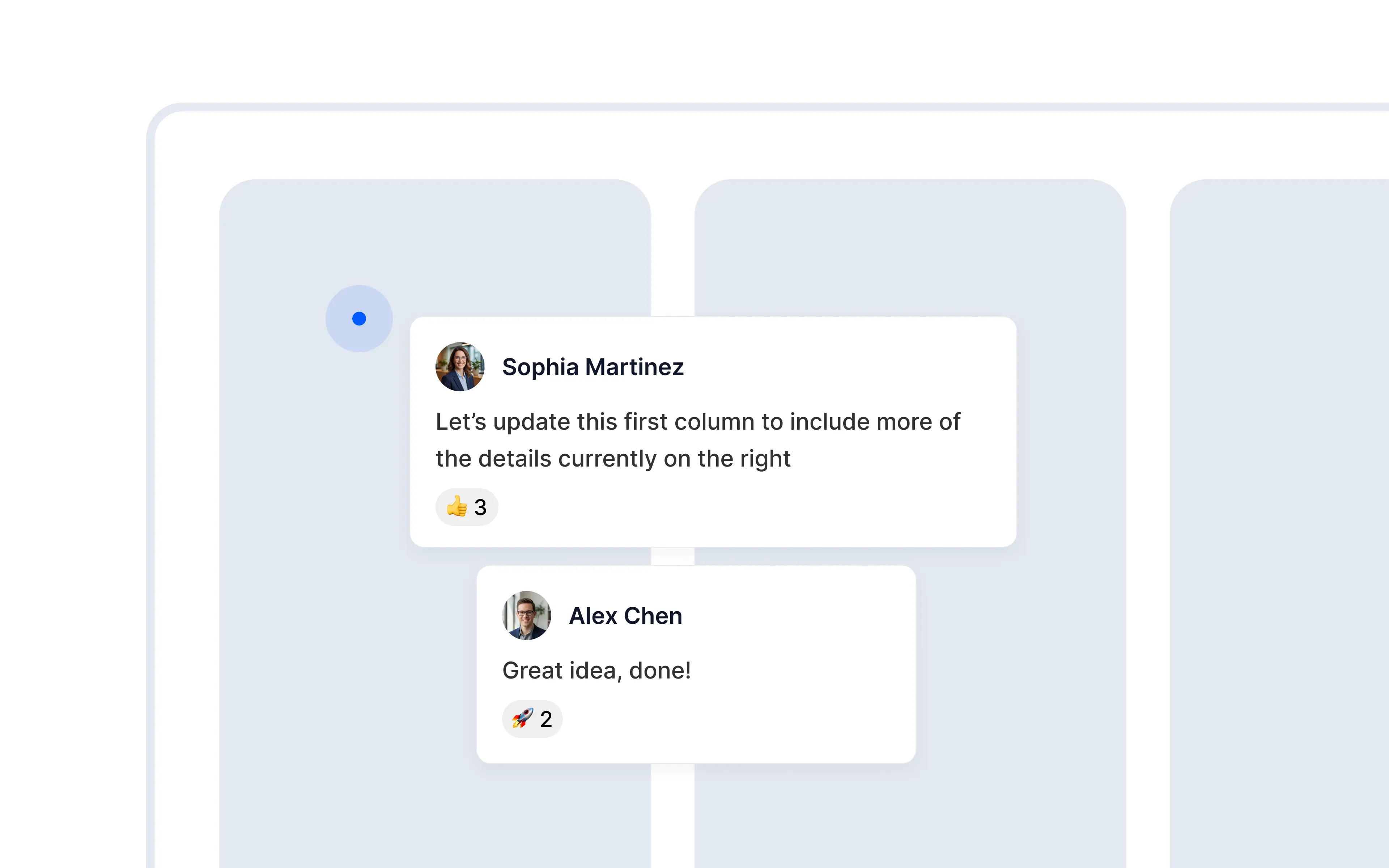
Inline comments anchor feedback to a specific element and page in an Alloy prototype so reviewers can see exactly what each thread refers to.
Leave feedback inline directly on any part of the session preview.
Comments already give your team a place to discuss a session. Inline comments make that feedback precise, so nobody has to ask which card, label, or interaction a comment refers to.
Comment on any element. Open Comments, select Add inline, then hover over the prototype and click where you want to leave feedback.
Keep feedback attached. Each pin is anchored to the element and page you selected.
Continue the conversation in context. Hover over a pin to preview the thread, or open it to reply. Inline threads also appear in the main Comments panel, so every discussion remains easy to find.
Inline comments are available today from the Comments panel on any prototype.
Frequently asked questions
Place a comment pin directly on the relevant element so the feedback retains its visual context. In Alloy, open Comments, select Add inline, then hover over the prototype and click the exact card, label, or control you want to discuss.
Element-anchored comments should remain associated with both the selected element and its page. Alloy keeps each pin attached, previews its thread on hover, and also lists the discussion in the main Comments panel for easy follow-up.
Inline threads should be available both at their visual pin and in a central feedback list. Alloy previews a thread when you hover over its pin and includes every inline discussion in the main Comments panel.