
Most teams love Vercel preview deployments until the build minutes start piling up, old preview URLs hang around, and environment variable mistakes begin showing up across branches. Previews should make review easier, not turn into a budget and security problem. The real win comes from knowing how to configure them well, where to limit them, and how to test ideas earlier in the workflow so every deploy has a clearer reason to exist.
TLDR:
- Vercel preview deployments auto-generate live URLs for every non-production branch push.
- Environment variables scope separately to development, preview, and production environments.
- Pro plan preview builds on Turbo are billed per-minute; disable auto-deploy to control costs.
- Deployment protection gates preview access via password, Vercel login, or bypass links.
- Newer upstream layers let teams validate product ideas before code exists, reducing wasted engineering effort early.
What Vercel Preview Deployments Are
Every time you push to a non-production branch or open a pull request in Vercel, a live, shareable URL spins up automatically with your changes running inside it. That's a preview deployment.

Preview deployments sit between development and production, running on real infrastructure, so what you see is what you'd ship. Every teammate and stakeholder gets the same URL, removing the "works on my machine" risk. Vercel manages three distinct environments: development, preview, and production.
Understanding Vercel's Three Environment Types
Vercel's three environments each serve a specific role in the deployment lifecycle.
- Local Development: Code runs first via
vercel dev. Variables scoped to "Development" only appear here. - Preview: Triggered on any push to a non-production branch or when a pull request opens. Each push generates a unique URL with preview-scoped variables, so staging secrets never reach production.
- Production: Deploys when changes are pushed or merged to the production branch (commonly main) with separate environment variables and Vercel's highest resource limits.
The separation lets you scope secrets precisely. A test API key has no reason to touch production, and a production database URL should never appear in a preview build.
How to Deploy to Vercel Preview Environments
There are three ways to trigger a preview deployment.
- Git integration: Connect your GitHub, GitLab, or Bitbucket repo and every push to a non-production branch generates a preview URL automatically. Vercel posts that URL as a pull request comment so reviewers can click through immediately.
- Vercel CLI: Run
vercelfrom your project directory. Without--prod, it deploys to preview by default and prints the URL in seconds. - Vercel API: For custom pipelines outside Git or when you need fine-grained control over when previews fire.
Each method generates a unique, immutable URL tied to that build. Vercel can assign a branch-based URL that updates on every push (depending on your project setup), so you can share a stable link while still getting fresh builds each commit.
Managing Environment Variables Across Preview and Production
In your project settings, each variable gets assigned to one or more environments: Development, Preview, or Production. A staging API key belongs in Preview only; a live payment processor key belongs in Production only. Mixing these is how bugs reach users.
Setting Branch-Specific Variables
For teams running multiple long-lived branches, Vercel lets you scope variables to a specific branch instead of all previews. Under a variable's settings, toggle on branch-specific targeting and enter the branch name. That variable only appears in deployments from that branch.
Pulling Preview Variables Locally
Run this to write preview-scoped variables to .env.local for local debugging:
vercel env pull --environment preview
When Variables Don't Update
Vercel bakes environment variables into the build at deploy time. Changing a variable in the dashboard won't update existing deployments. You need to trigger a new build. Other causes to check:
- The variable was scoped to the wrong environment and never reached the preview build in the first place.
- The branch name doesn't match the branch-specific target you configured.
- A
.envfile committed to your repo is overriding the dashboard value locally.
Custom Environments for Advanced Workflows
If you need a dedicated QA process or a staging environment that mirrors production exactly, Vercel supports custom deployment environments beyond Development, Preview, and Production on Pro and Enterprise plans. Define environments like staging or qa in your project settings, then deploy to one using the CLI:
vercel --target staging
Custom environments give you a stable, named deployment target instead of a fresh URL on every push, useful when QA runs a fixed test suite against a known URL or stakeholders need a permanent staging link. If your team is constantly hunting for the right preview URL, a named environment solves that.
Sharing and Collaborating on Preview Deployments
Preview URLs are shareable by default. For structured collaboration, Vercel lets you invite team members to view deployments, leave comments, and track build history. External collaborators get scoped access without full project visibility. If deployment protection is active, external viewers may need to be added individually, request access, or use a shareable or bypass link depending on your protection settings. Vercel also posts preview URLs as pull request comments automatically when your repo is connected.
Securing Preview Deployments with Deployment Protection
By default, preview URLs are publicly accessible to anyone with the link (unless deployment protection is activated). If your previews contain unreleased features or sensitive flows, Vercel's deployment protection lets you restrict access.
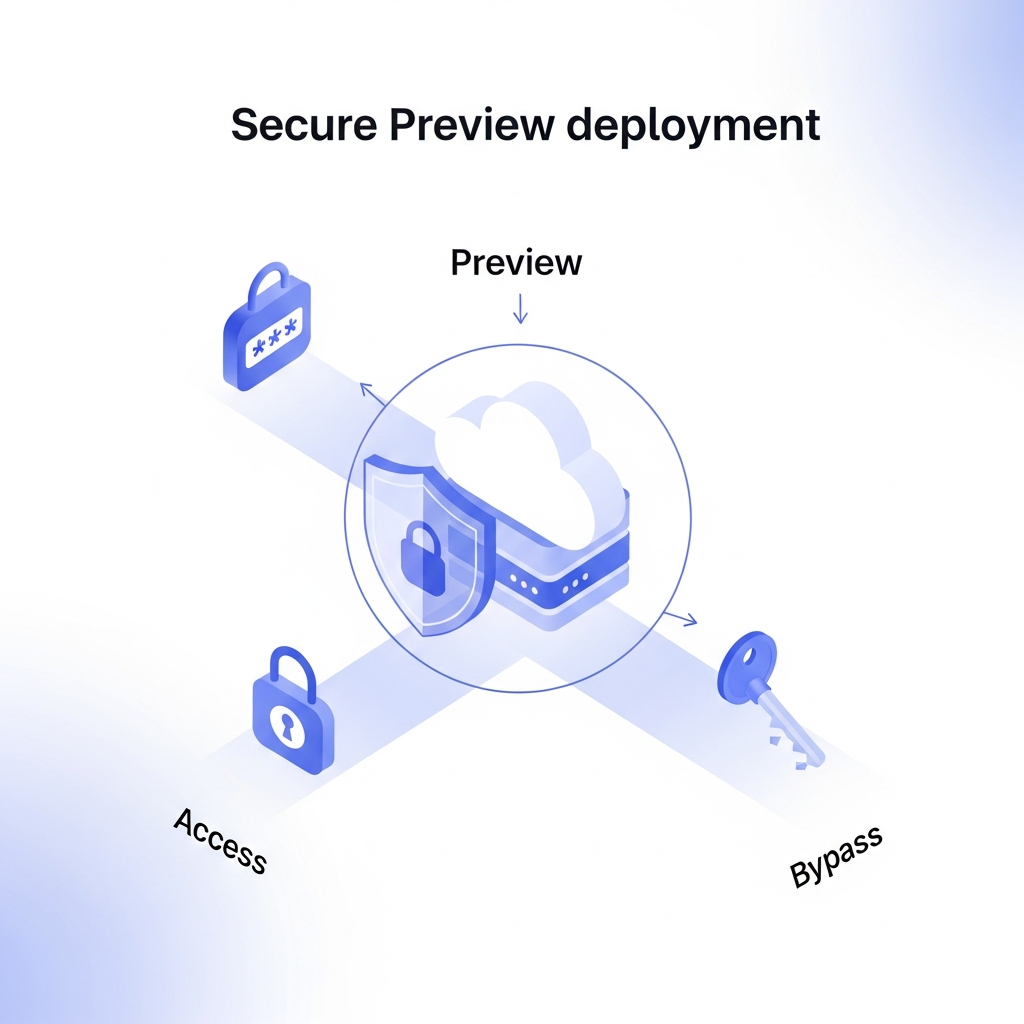
Protection is available on Enterprise or on Pro with the Advanced Deployment Protection add-on. Vercel Authentication can gate access behind a Vercel login prompt, while Password Protection is available on Enterprise or on Pro with the Advanced Deployment Protection add-on.
Protection Options
There are three ways to lock down access depending on your plan:
- Vercel Authentication: requires viewers to log in with a Vercel account before the preview loads
- Password protection: sets a shared password for the deployment URL, suitable for small external teams
- Trusted IPs (Enterprise only): restricts access by IP range for organizations with stricter network policies
Bypass Links for Stakeholders
For external stakeholders who don't have Vercel accounts, use protection bypass links. Generate one from deployment settings. It skips authentication for that specific URL while protection stays intact for everyone else. Revoke it when the review is done.
Controlling Preview Deployment Costs on Pro Plans
New Pro projects default to Turbo build machines at $0.126 per minute. A team running 20 pull requests per day with 5-minute average builds crosses $378/month in preview costs alone. A few ways to keep that manageable:
- Switch to standard build machines for low-traffic preview branches where Turbo speed isn't needed.
- Disable auto-deploy on low-priority branches and trigger previews manually.
- Set ignored build step scripts to skip deployments when only docs or non-code files change.
- Check your monthly build minutes in the Vercel usage dashboard regularly.
Disabling or Limiting Preview Deployments
If your team deploys through CI pipelines and doesn't need automatic previews on every push, a few configuration options give you that control.
Ignored Build Step
In your project settings, set an ignored build step command. Vercel runs this script before each build, and if it exits with code 1, the deployment is skipped. A common pattern is checking whether relevant files changed:
git diff HEAD^ HEAD --quiet ./src
vercel.json Branch Patterns
To disable deployments on specific branches, use ignored build steps or adjust your Git integration settings to control which branches trigger deployments.
Full Auto-Deploy Disable
Turn off Git integration auto-deploy in the project's Git settings. Deployments only fire when you explicitly run vercel or trigger the API.
CLI Commands for Preview Deployment Management
vercel
vercel env pull --environment preview
vercel rm [deployment-url]
vercel alias [deployment-url] your-preview.yourdomain.com
A quick reference for the commands you'll reach for most often.
Deploy to Preview
vercel
Without --prod, every deploy targets preview by default.
Pull Preview Environment Variables
vercel env pull --environment preview
Writes preview-scoped variables to .env.local for local debugging.
Remove Old Preview Deployments
vercel rm [deployment-url]
Run vercel ls first to list deployments, then remove by URL or deployment ID.
Alias a Preview to a Custom Domain
vercel alias [deployment-url] your-preview.yourdomain.com
Assigns a stable URL to any preview build for consistent stakeholder review sessions.
Vercel Pricing and Preview Deployment Limits
Preview deployments draw from the same resource pool as production; every build minute and bandwidth gigabyte counts against your monthly allocation.
| Plan | Build Minutes | Bandwidth | Overage |
|---|---|---|---|
| Hobby (Free) | 6,000/month | 100GB | Not available |
| Pro | Higher limits | 1TB included | $0.40/GB over |
| Enterprise | Custom | Custom | Negotiated |
On Hobby, there are no overages. You hit the cap and builds stop. Pro teams get more headroom but pay $0.40/GB once bandwidth clears 1TB. With active preview workflows across multiple branches, that threshold arrives faster than most teams expect.
Using Alloy's Cloud Playground to Accelerate Preview Workflows
Every push to Vercel costs build minutes. If your team is validating product ideas through commits, you're paying for exploration that didn't need to hit the pipeline yet. Alloy's Cloud Playground moves experimentation upstream. Spin up a sandbox connected to your real codebase, iterate on interface changes using AI, and share a live link with stakeholders before writing a single commit.
Because each sandbox runs against your actual product code, what stakeholders see behaves like the real thing. There's no need to recreate flows in a separate design tool or explain what a mockup is meant to represent. Feedback lands faster, and the ideas worth building get identified before any engineering time is spent.
Once an idea is validated, push to Git and let Vercel handle the final engineering review. The result: fewer throwaway preview builds, lower monthly costs, and a cleaner PR history.
FAQs
What's the difference between Vercel preview and production environments?
Production deploys when changes reach your production branch and uses production-scoped environment variables, while preview deploys automatically on pushes to non-production branches with preview-scoped variables. This separation prevents staging secrets from reaching production and gives you isolated testing environments before code goes live.
Can I disable Vercel preview deployments for specific branches?
Yes. Set an ignored build step in your project settings that exits with code 1 to skip builds, adjust your Git integration settings to control which branches trigger deployments, or disable Git integration auto-deploy entirely for fully manual control. This prevents wasteful builds on branches that don't need continuous preview feedback.
Why aren't my Vercel environment variables updating in preview deployments?
Environment variables bake into your build at deploy time, so changing a variable in the dashboard doesn't retroactively update existing deployments. Trigger a new build to see the change, and verify the variable is scoped to Preview (and not Production or Development) and matches any branch-specific targeting you configured.
Final Thoughts on Working with Vercel Preview Deployments
Vercel preview deployments work best when they stay focused on review, not early-stage experimentation. Once your team has tighter control over build triggers, access, and variable scoping, previews become far more useful and far less expensive. Alloy adds another step before that process begins, giving teams a way to test product changes before they ever hit the deployment pipeline. If you want Vercel preview deployments to stay useful without absorbing work they were never meant to carry, Alloy is worth a closer look.