MCP connectors let the Alloy agent use tools and context from SaaS products that expose a compatible remote Model Context Protocol server.
Bring the tools your team already uses into Alloy agent sessions.
Product work spans research, analytics, support, planning, and billing tools. MCP connectors give the Alloy agent secure access to those systems, so it can work with the context and capabilities they expose without you copying information between apps.
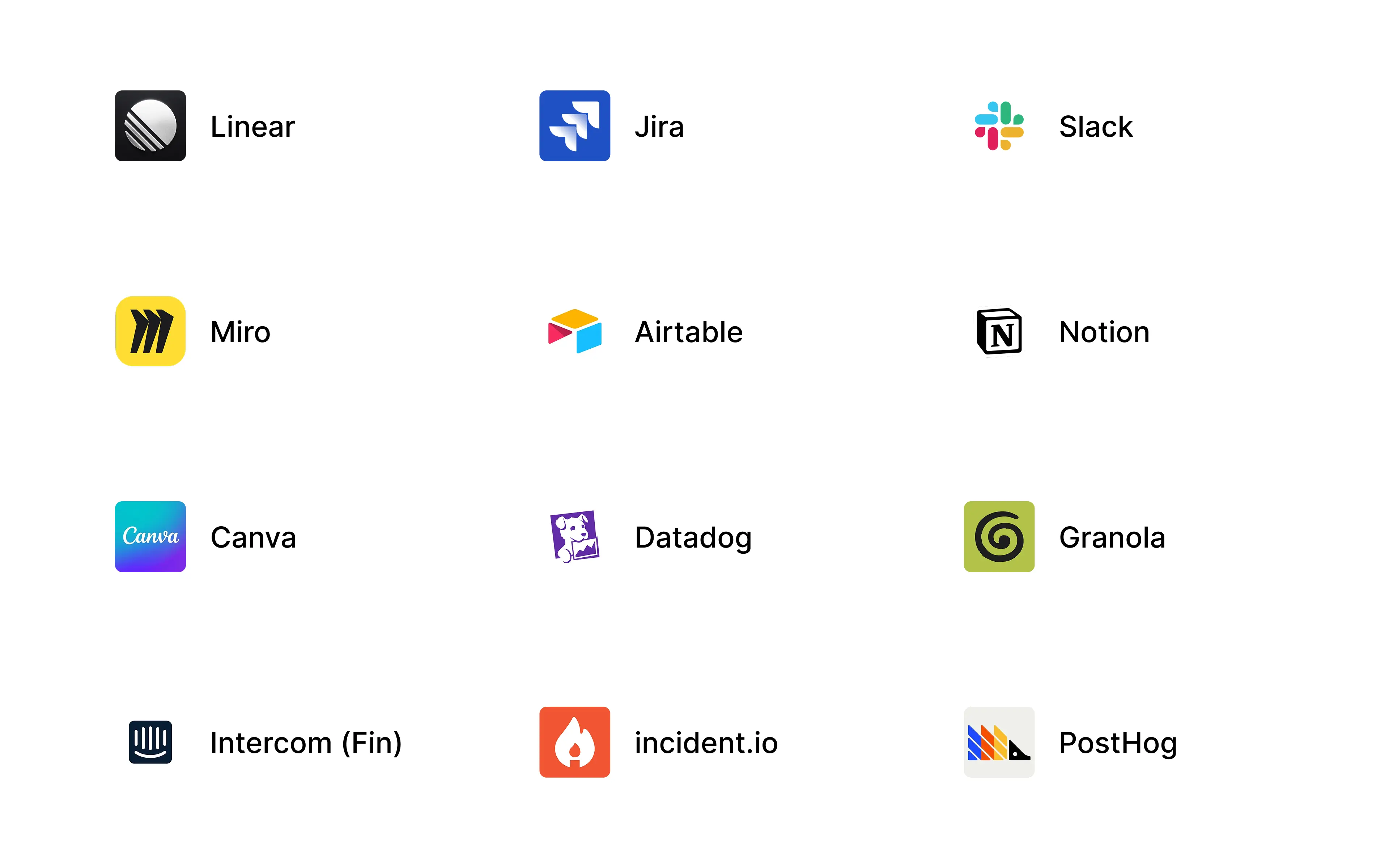
Connect from the integrations directory. Workspace admins can authorize providers including Notion, Airtable, Miro, Canva, Monday.com, Datadog, Granola, incident.io, Intercom, PostHog, and Stripe.
Add any compatible MCP server. If a service is not in the directory, enter its remote MCP server URL. Alloy discovers its OAuth setup and guides you through authorization.
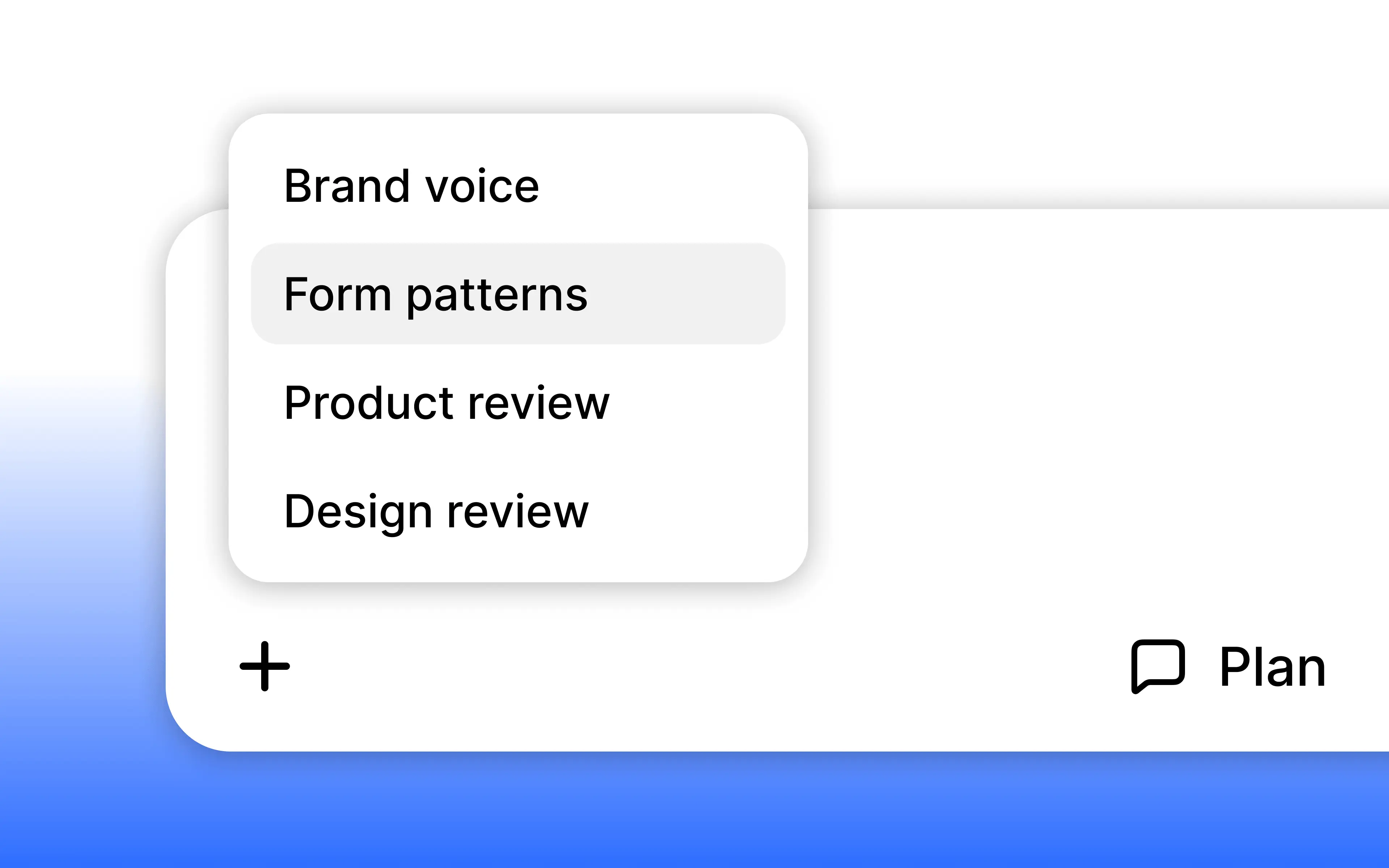
Use connected tools across sessions. Once connected, the server's tools are available to the Alloy agent in prototype and codebase sessions across your workspace.
MCP connectors are available today from Settings → Integrations.
Frequently asked questions
Add an MCP connector by choosing a supported provider or entering the URL of a compatible remote MCP server, then complete authorization. In Alloy, open Settings → Integrations, connect the service, and its tools become available to the agent across prototype and codebase sessions.
MCP connectors can let an agent retrieve approved context or take supported actions in an external SaaS tool without manual copying. Alloy makes those connected tools available during sessions, while keeping authorization explicit and letting teams connect any compatible remote MCP provider.
An MCP-enabled tool can connect to listed providers and any compatible remote MCP server that your team authorizes. Alloy's integrations directory includes services such as Notion, Airtable, Miro, Canva, Monday.com, Datadog, Granola, incident.io, Intercom, PostHog, and Stripe, with a custom server option for other providers.