
Wireframing software exists to answer one question cheaply: is this the right structure for this screen? Before anyone debates colors, copy, or components, a wireframe settles where things go and why.
But "wireframing software" in 2026 does not mean one kind of tool anymore. It spans deliberately crude sketching apps, full design platforms that happen to be good at boxes, and AI tools that make you wonder whether you need the boxes at all. This guide compares the 12 tools worth knowing, sorts them into three types, and shows how to choose based on the one question that matters most: are you designing something new, or changing something that already exists?
Key takeaways:
- Wireframing software splits into three types: low-fidelity sketch tools, design canvases, and AI generation tools.
- The right type depends less on features and more on whether the screen you are wireframing already exists.
- Low fidelity is a feature, not a limitation. Rough edges invite structural feedback and suppress nitpicks about polish.
- For existing products, capturing the real interface and describing the change has largely replaced redrawing screens as grey boxes.
The 12 best wireframing software tools compared
| Tool | Type | Best for | Free plan | Learning curve | Wireframe carries forward? |
|---|---|---|---|---|---|
| Alloy | AI, capture-based | Product managers changing an existing web app | Yes, with monthly credits | Minimal, plain-language prompts | Yes, becomes a working prototype |
| Figma | Design canvas | Designers taking a wireframe through to final design | Yes, limited files | High for non-designers | Yes, within the same file |
| Balsamiq | Low-fidelity sketch | Fast, disposable structure sketches | Trial only | Minimal | No, disposable by design |
| Whimsical | Low-fidelity sketch | PMs mixing flowcharts, docs, and wireframes | Yes | Minimal | No |
| Miro | Whiteboard | Remote workshops and early ideation | Yes | Low | No |
| Excalidraw | Low-fidelity sketch | Engineers sketching quickly, open source | Yes, free | Minimal | No |
| Uizard | AI generation | Turning prompts or sketches into editable wireframes | Yes, limited | Low | Partly, as editable mockups |
| Visily | AI generation | Screenshot-to-wireframe and template-based mockups | Yes, limited | Low | Partly, exports to Figma |
| Moqups | Wireframing and diagrams | Teams that want wireframes and flowcharts in one place | Yes, limited | Low | Limited click-through prototypes |
| Sketch | Design canvas | Mac-only design teams | Trial only | Medium | Yes, within Sketch |
| Penpot | Design canvas | Teams that want an open-source Figma alternative | Yes, free | Medium | Yes, within Penpot |
| Axure RP | High-fidelity prototyping | Complex logic, conditional flows, enterprise specs | Trial only | High | Yes, as interactive specs |
Prices below are approximate as of September 2026 and change often. Check each vendor for current plans.
How we evaluated wireframing software
Every tool here was judged against the job a wireframe actually does, not against a feature checklist:
- Speed of thought. How fast can you lay out a screen? Component libraries, stencils, and keyboard shortcuts matter more than visual options.
- The right amount of ugliness. A wireframe that looks finished gets feedback about fonts. A wireframe that looks like a sketch gets feedback about structure.
- A path forward. Once the structure is agreed, does the work carry into a mockup, a prototype, or code, or does it get redrawn? If those stages blur together for you, our breakdown of wireframes vs. mockups vs. prototypes draws the lines.
- Who can use it. Designers will tolerate a learning curve. Product managers, founders, and engineers mostly will not.
Alloy
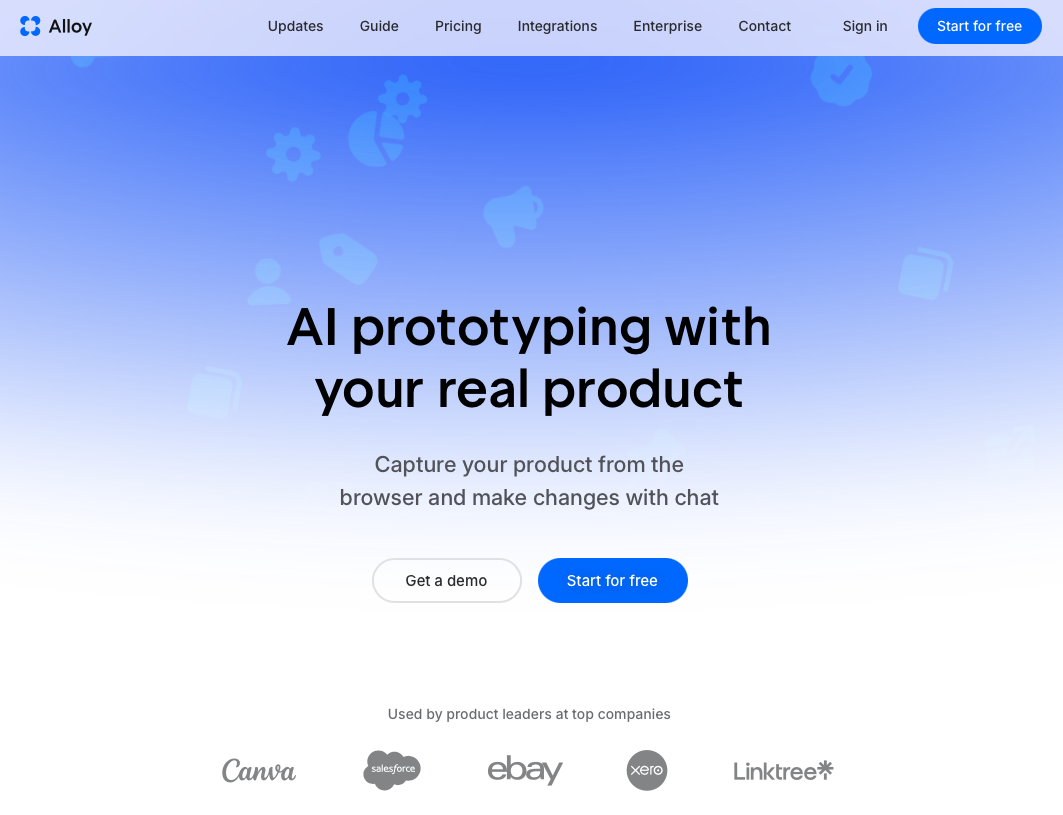
Alloy takes a different route to wireframing by starting from your existing product instead of a blank canvas. Install the Chrome extension or paste a URL into the website cloner, and any page of your live web app, including logged-in screens, is captured with every design detail intact. Then you describe the change in plain language and the AI applies it to the real interface, with your actual fonts, components, and data in place.
The result is less a wireframe than a testable version of the change. Stakeholders react to something that looks like the product they already know, and the prototype can be shared by link or pushed toward code.
Best for: Product managers, founders, and designers iterating on an existing web app who want structural feedback and realistic feedback in one step.
Pricing: Free plan with monthly credits. Pro is about $20 per user per month. See pricing.
Limitation: Alloy needs something to capture. For a brand-new product with no screens yet, a sketch tool or design canvas is the better first step.
Figma
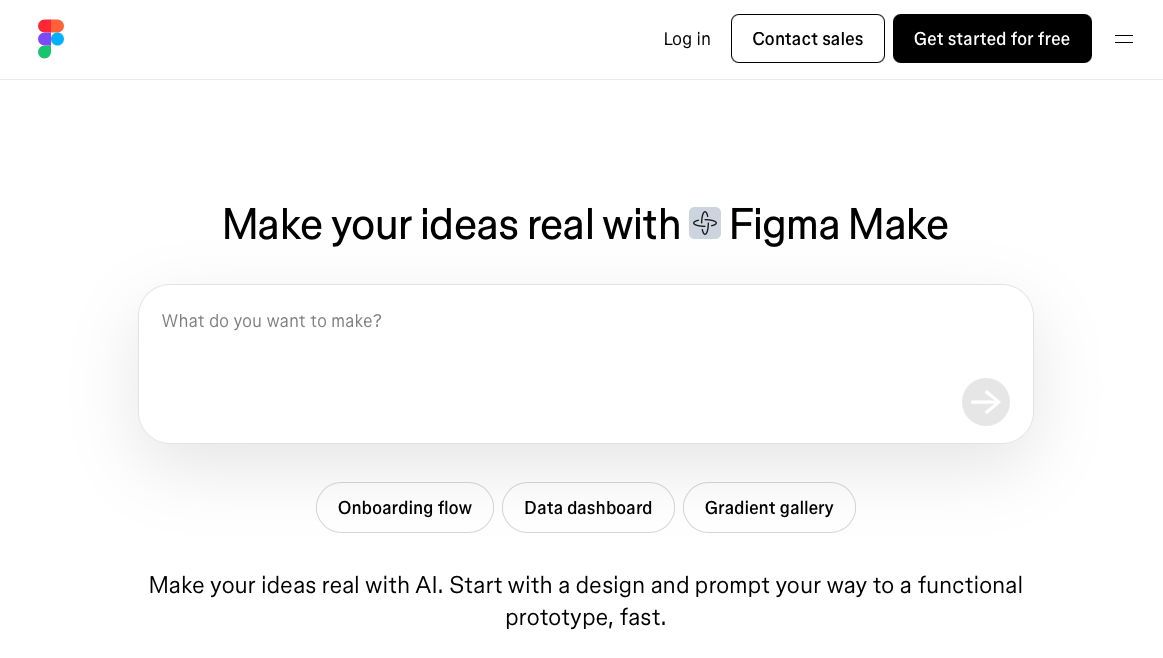
Most wireframing today happens in Figma, even though it was not built specifically for it. Designers block out screens with grey rectangles because the team is already there, the component libraries are already there, and a wireframe frame can graduate into a high-fidelity design without being redrawn somewhere else. FigJam covers the rougher whiteboard stage, and Figma Make adds AI generation for teams that want to skip straight to a working screen. Our Figma Make vs. Claude Design comparison covers that side in depth.
Best for: Design teams that want one tool from the first wireframe through to the final design.
Pricing: Free Starter plan with limited files. Paid seats start at about $16 per editor per month.
Limitation: The canvas does not stop you from polishing too early, and non-designers face a real learning curve. Existing product screens have to be recreated by hand.
Balsamiq
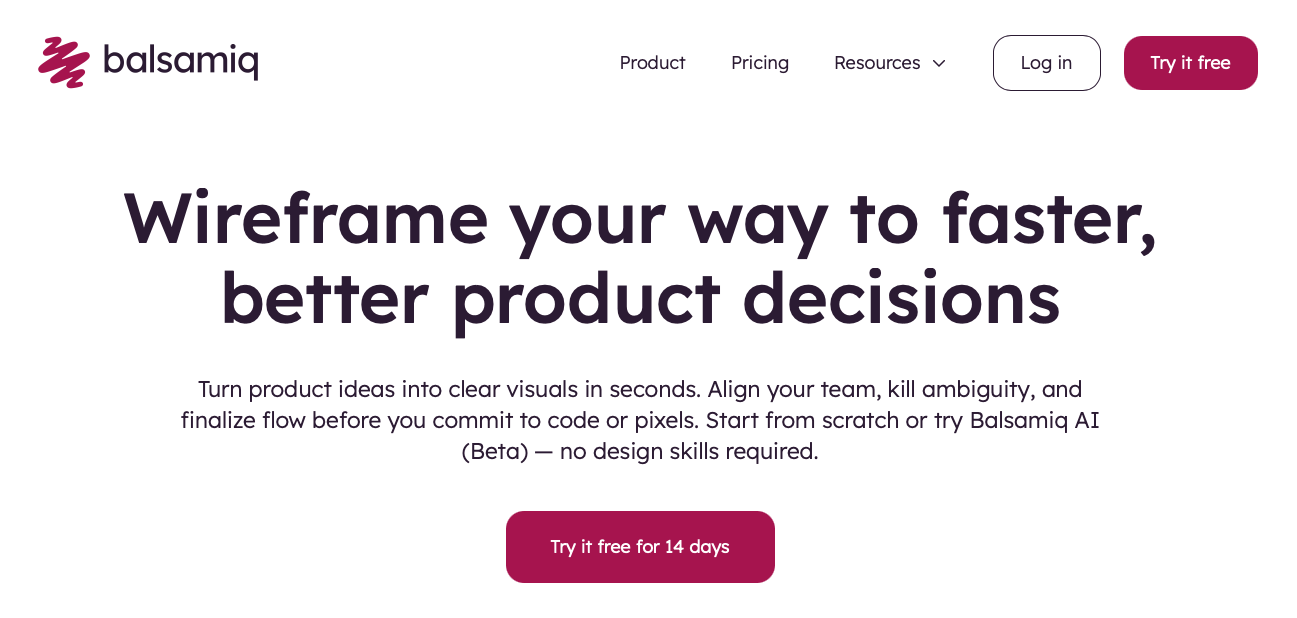
Balsamiq is the classic low-fidelity wireframing tool. Everything looks hand-drawn on purpose, so no one asks about brand colors when the whole screen looks like a marker sketch. The drag-and-drop stencil library is large, the learning curve is close to zero, and simple click-linking lets you walk someone through a flow.
Best for: Teams in the earliest concept phase who want fast, disposable structure sketches and feedback that stays on structure.
Pricing: No free plan. Balsamiq Cloud starts at about $12 per month for a small number of projects, with a free trial.
Limitation: Everything you draw is disposable. None of it carries forward into the design or the build, and there is no AI assistance.
Whimsical
Whimsical bundles flowcharts, mind maps, docs, and wireframes into one fast, opinionated canvas. Its wireframe kit is deliberately simple, which keeps sketches rough, and having the user flow diagram next to the screens makes it a favorite of product managers writing specs.
Best for: Product managers who want the thinking around the screens, meaning flows, notes, and decisions, in the same file as the wireframes.
Pricing: Free plan with limited boards. Pro is about $10 per editor per month.
Limitation: Wireframes stay low fidelity and do not export into a design or prototyping tool in a useful way.
Miro
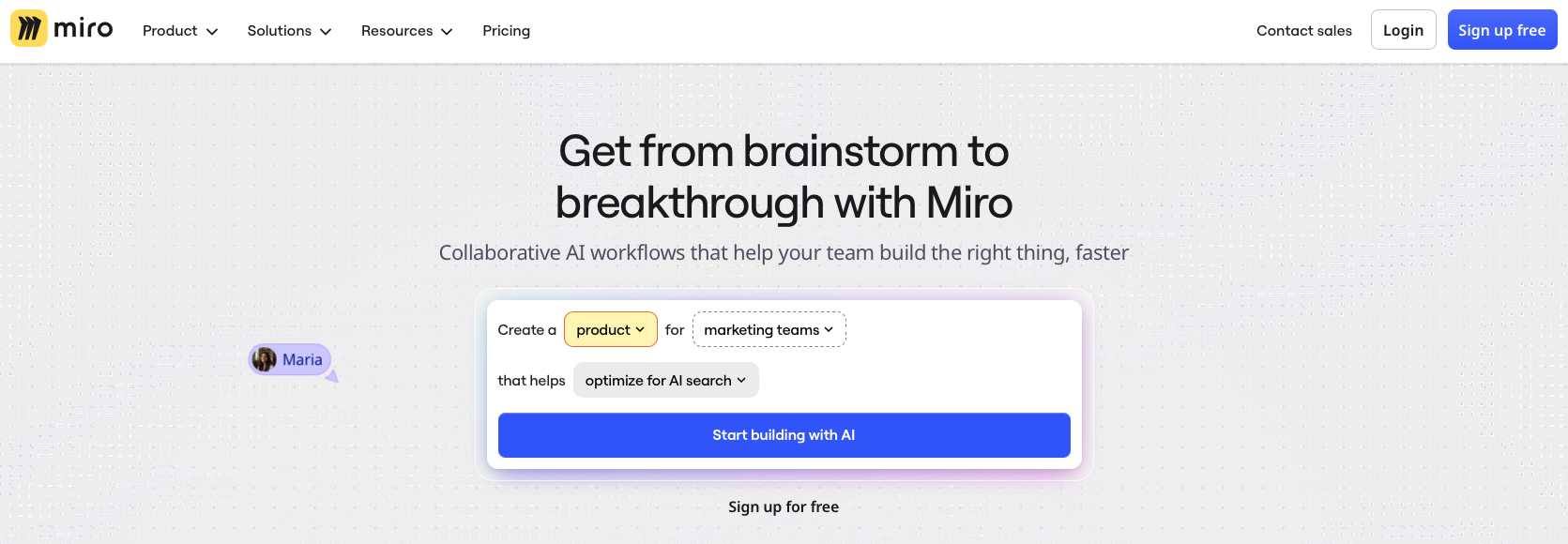
Miro is a digital whiteboard that includes wireframing alongside brainstorming and workshop tools. The infinite canvas suits mapping a user flow with sticky notes and rough screens in the same session, and asynchronous commenting works well for distributed teams.
Best for: Remote teams running collaborative design workshops or early ideation where wireframing is one activity among several.
Pricing: Free plan with three boards. Starter is about $8 per member per month.
Limitation: Miro does not support real click-through prototyping or capturing existing product designs. Wireframes drawn there are typically recreated in a dedicated tool.
Excalidraw
Excalidraw is a free, open-source whiteboard with a hand-drawn style that makes every sketch look intentionally provisional. It runs in the browser with no account, supports live collaboration, and has a wireframe library for common UI elements. Engineers love it because it is fast and unfussy.
Best for: Engineers and technical founders who want to sketch a screen in two minutes and paste it into a doc or pull request.
Pricing: Free. Excalidraw+ adds cloud workspaces from about $6 per user per month.
Limitation: No components, no prototyping, and nothing carries forward. It is a sketchpad, which is exactly the point.
Uizard
Uizard is an AI wireframing tool that turns a text prompt, a hand-drawn sketch, or a screenshot into an editable wireframe or mockup. Its Autodesigner feature generates multi-screen concepts from a description, and you can toggle between wireframe and higher-fidelity views of the same design.
Best for: Founders and non-designers who want to see a concept as screens quickly without learning a design tool.
Pricing: Free plan with limited projects. Pro is about $12 per creator per month.
Limitation: Generated screens are generic by nature. For an existing product, the output will not match your components or data, so it becomes a reference rather than a testable change.
Visily
Visily generates wireframes and mockups from screenshots, sketches, text prompts, or templates, and can export to Figma. The screenshot-to-design feature is useful for quickly recreating a competitor screen or a rough idea of your own product as an editable starting point.
Best for: Small teams that want AI-assisted mockups with a large template library and an easy path into Figma.
Pricing: Free plan with limited screens. Paid plans start at about $12 per user per month.
Limitation: Screenshot recreation is approximate. It produces a lookalike, not your real interface, so interactions and data still have to be rebuilt.
Moqups
Moqups combines wireframes, mockups, diagrams, and flowcharts in one browser-based tool with a clean stencil library and simple click-through prototyping. It sits between a sketch tool and a design canvas: more structure than Balsamiq, far less complexity than Figma.
Best for: Product teams that want wireframes and process diagrams together and occasionally need a simple clickable walkthrough.
Pricing: Free plan with limited objects. Paid plans start at about $13 per month.
Limitation: Prototyping is basic, there is no AI assistance, and the output does not carry into a design system or code.
Sketch
Sketch is the macOS design tool that pioneered many features now standard in interface design, including symbols for reusable components and a large plugin ecosystem. Wireframing in Sketch works the same way it does in Figma: grey boxes in a frame that can later become the real design.
Best for: Design teams working exclusively on macOS who prefer a native desktop app and local files.
Pricing: No free plan. About $10 per editor per month, with a free trial.
Limitation: Mac only, which excludes Windows and Linux collaborators. Real-time collaboration and prototyping lag behind browser-based tools, and there is no AI assistance.
Penpot
Penpot is an open-source design and prototyping tool that works much like Figma, with components, auto layout, and multiplayer editing, and can be self-hosted. It is the natural choice for teams that want a design canvas without vendor lock-in.
Best for: Teams with a preference for open source or a need to self-host, who want wireframes that evolve into full designs.
Pricing: Free and open source. Self-hosting costs only infrastructure.
Limitation: The plugin ecosystem and AI features are smaller than Figma's, and non-designers face the same learning curve as any design canvas.
Axure RP
Axure RP is the heavyweight of the group. It is built for high-fidelity, logic-rich prototypes with conditional flows, variables, and dynamic content, and it generates detailed specifications for engineering. Wireframing is one of its modes, not its main purpose.
Best for: Enterprise UX teams that need to specify complex, conditional interactions before development.
Pricing: No free plan. About $25 per user per month, with a free trial.
Limitation: Steep learning curve and heavy for simple wireframes. Most product teams do not need this much logic in a wireframe.
The three types of wireframing software
The 12 tools above fall into three types, and the type matters more than any individual feature.
1. Low-fidelity sketch tools
Examples: Balsamiq, Whimsical, Excalidraw, Miro, Moqups.
These tools make everything look provisional on purpose. Choose this type when the idea is genuinely new, the structure is genuinely unsettled, and you want feedback from people who would otherwise fixate on visuals. Its limit: everything you draw is disposable.
2. Design canvases used for wireframing
Examples: Figma, Sketch, Penpot, Axure RP.
Designers block out screens in the same tool that will hold the final design. Choose this type when a designer owns the work and the wireframe is stage one of a design that will live in the same file. Its limit: the canvas does not stop you from polishing too early, and for non-designers these tools carry a real learning curve. Deciding how rough that first pass should be is its own question, covered in our guide to low-fidelity vs. high-fidelity prototypes.
3. AI wireframing and prototyping tools
Examples: Alloy, Uizard, Visily.
The newest type does not ask you to draw at all. Describe the screen and the tool generates it, either as an editable wireframe (Uizard, Visily) or as a working interface (Alloy). This collapses the distance between wireframe and prototype: if a clickable screen costs the same five minutes as a static sketch, the sketch loses most of its reason to exist.
The deeper split within this type is what the AI starts from. Prompt-based generators start from a blank page and produce plausible generic UI. Alloy starts from your product, capturing the real page and applying your described change to it. For a broader look at that category, see our best AI prototyping tools comparison.
How to choose: one question, then three
The first question does most of the work: does the screen you are wireframing already exist?
If yes, because you are redesigning a settings page, adding a step to onboarding, or reworking a dashboard, redrawing it as grey boxes is mostly wasted motion. Capture the real screen and iterate on it directly. The wireframe stage collapses into the prototype stage, and stakeholders react to something that looks like the product they know. This is exactly the workflow Alloy's website cloner and Chrome extension were built for, and our guide to prototyping changes on an existing web app walks through it end to end.
If no, because the product or flow is genuinely new, three more questions pick your tool:
- Who is doing the wireframing? Designers will be happiest in Figma, Sketch, or Penpot. Product managers, founders, and engineers move faster in Balsamiq, Whimsical, Excalidraw, or an AI tool that accepts a text description.
- What kind of feedback do you need? Structural feedback argues for low fidelity. Feasibility or usability feedback argues for something clickable, sooner.
- What happens after agreement? If the answer is "a designer takes over," a design canvas keeps everything in one file. If the answer is "we build it," a tool that outputs working UI saves a translation step.
Where wireframing software is heading
The category is being squeezed from both ends. Design canvases keep absorbing the low-fidelity use case with better stencils and wireframe kits, while AI prototyping keeps proving that for most product work, which is iteration on products that already exist rather than invention from zero, a working prototype is now cheaper than a static sketch ever was. Our guide to what AI prototyping is explains why.
What survives is the thinking. Structure first, polish later remains the right order for designing screens. The grey boxes were only ever a means to it. The tools that win from here are the ones that keep that discipline while shortening the distance to something a user can actually click.
FAQs
What is the best wireframing software?
There is no single best tool, because wireframing software splits into three types. Balsamiq and Whimsical are the best low-fidelity sketch tools for new concepts. Figma is the best design canvas when a designer will turn the wireframe into the final design. Alloy is the best option when the screen already exists in your product, because it captures the real interface and applies your change instead of making you redraw it.
Is there free wireframing software?
Yes. Excalidraw and Penpot are free and open source. Figma, Whimsical, Miro, Uizard, Visily, and Moqups all have free plans with project or page limits. Alloy has a free plan with monthly credits. Balsamiq, Sketch, and Axure RP are paid tools with trials.
Is Figma good for wireframing?
Yes. Figma is the most common choice because wireframes made there can evolve into the final design without switching tools, and FigJam covers the rougher whiteboard stage. The trade-off is that a pixel-perfect canvas invites visual polish earlier than a wireframe needs, and non-designers face a real learning curve.
What is the difference between wireframing software and prototyping software?
Wireframing software produces static structural sketches. Prototyping software produces something you can click through. The line has blurred: most wireframing tools now add basic click-linking, and AI prototyping tools produce interactive screens in the time a wireframe used to take, which is why many teams go straight to a prototype.
Can AI generate wireframes?
Yes. Uizard and Visily generate editable wireframes from a text prompt, a sketch, or a screenshot. AI prototyping tools go further and generate working, clickable screens. For changes to an existing product, Alloy skips generation guesswork by capturing the real interface and applying your described change to it.
Do I still need wireframes if I use AI prototyping tools?
For brand-new concepts, a rough wireframe is still the cheapest way to think through structure. For changes to an existing product, increasingly no. Capturing the real screen and iterating on it gives you structure, visual context, and interactivity in one step, and it collects feedback that a grey-box wireframe cannot.