ChatGPT subscription
Connect your ChatGPT Plus or Pro subscription to use supported OpenAI models in Alloy without consuming Alloy credits for those iterations.
This integration requires an Alloy Pro subscription. Your connection is personal to your Alloy account and works in both prototype and dev sessions. Alloy does not currently support OpenAI API keys or bring your own key (BYOK).
Before you connect
You need:
- An active Alloy Pro subscription.
- An active ChatGPT Plus or Pro subscription.
- Device code authorization enabled for Codex in ChatGPT.
How to connect ChatGPT
1. Enable device code authorization
In ChatGPT, open Settings > Security and login, then turn on Enable device code authorization for Codex.
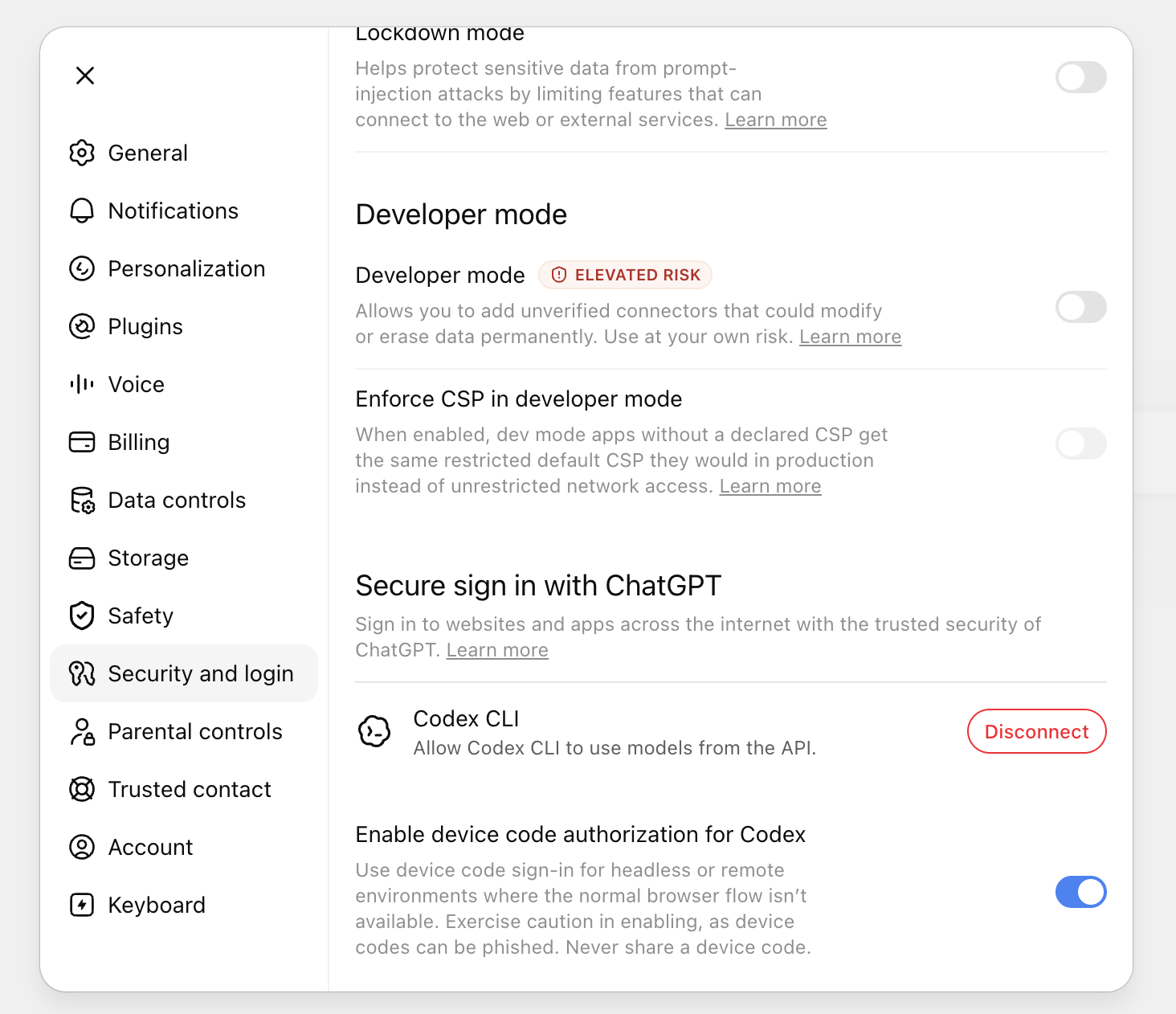
Device code authorization must be enabled before Alloy can start the connection.
2. Open the ChatGPT integration in Alloy
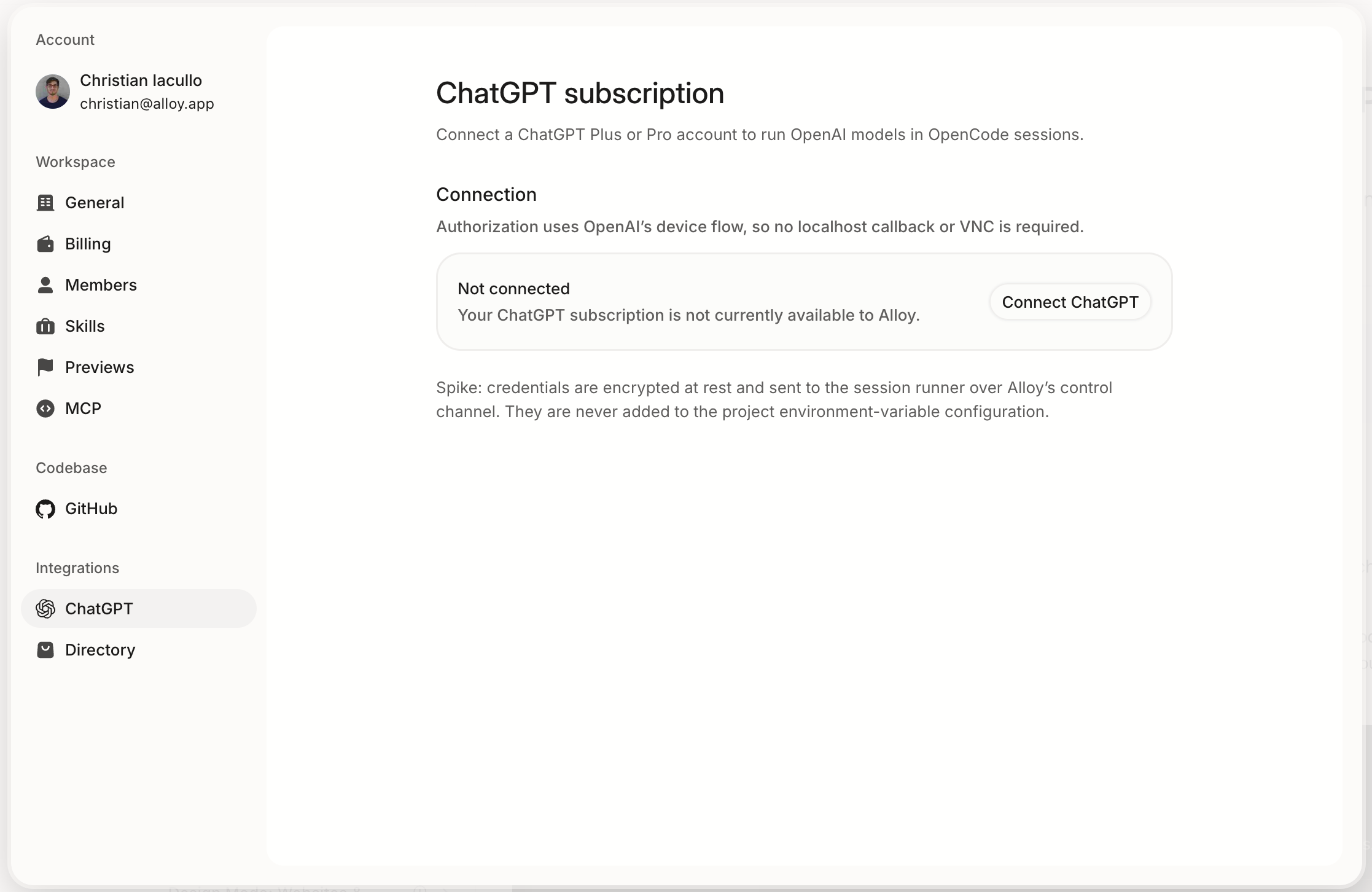
Open ChatGPT subscription settings, or open your Alloy settings and select ChatGPT under Integrations. Click Connect ChatGPT.
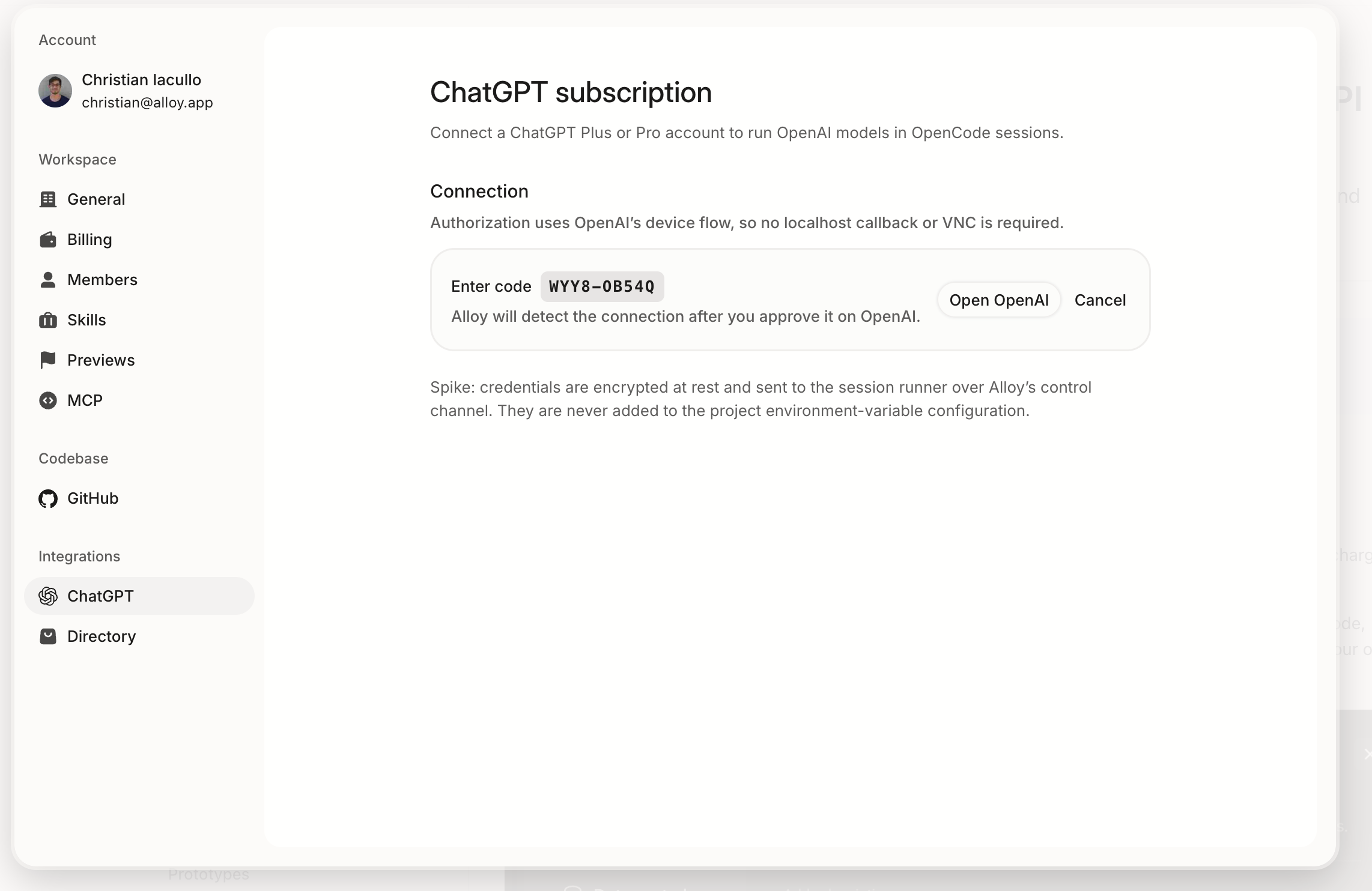
3. Authorize Alloy with OpenAI
Alloy displays a one-time device code. Click Open OpenAI, sign in to the ChatGPT account you want to use, enter the code, and approve the connection.
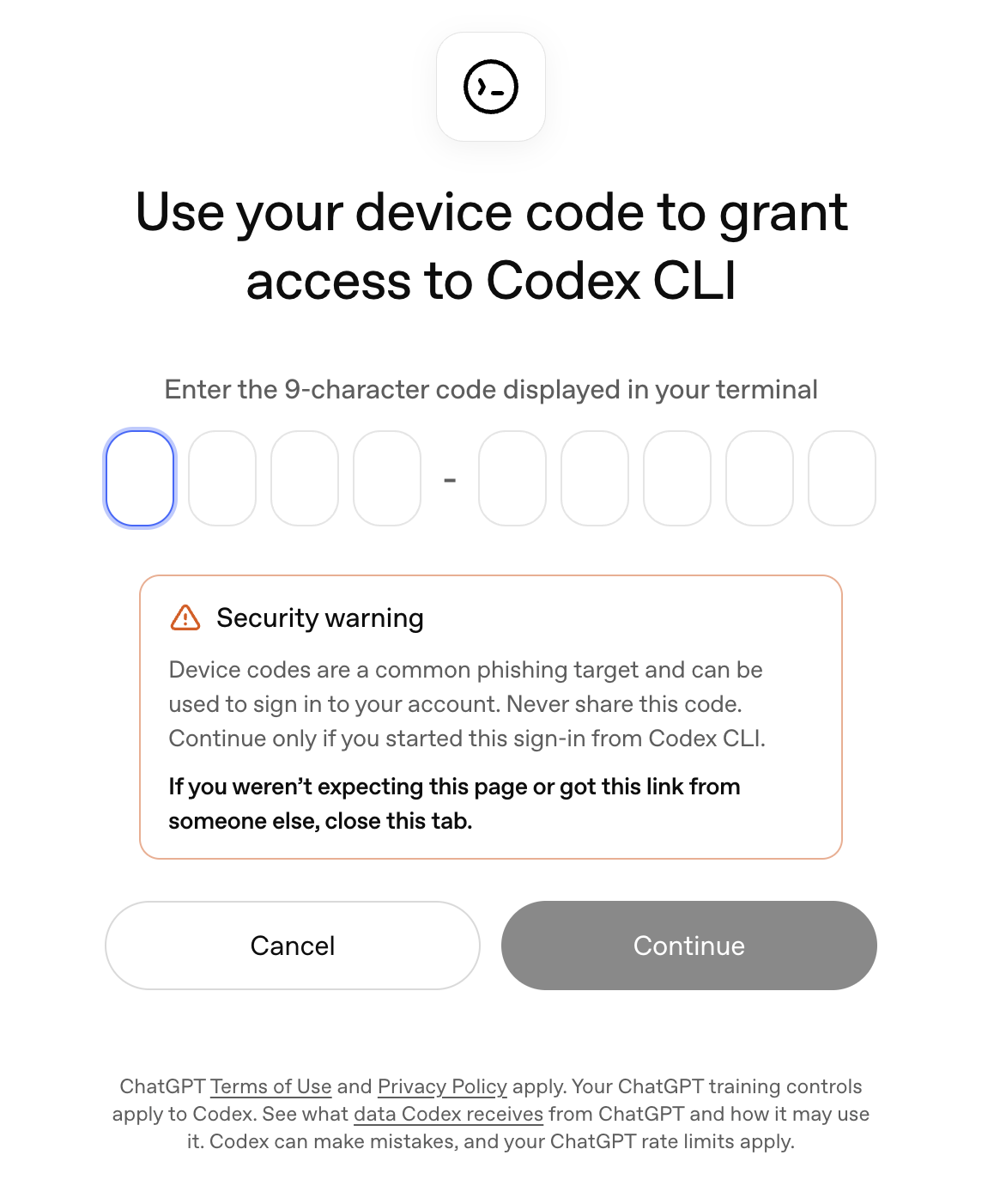
The device flow does not require a localhost callback or a VNC session. Alloy detects the authorization after you approve it on OpenAI.
4. Confirm the connection
Return to Alloy after approving the request. The ChatGPT subscription settings show the connection as Connected when authorization is complete.
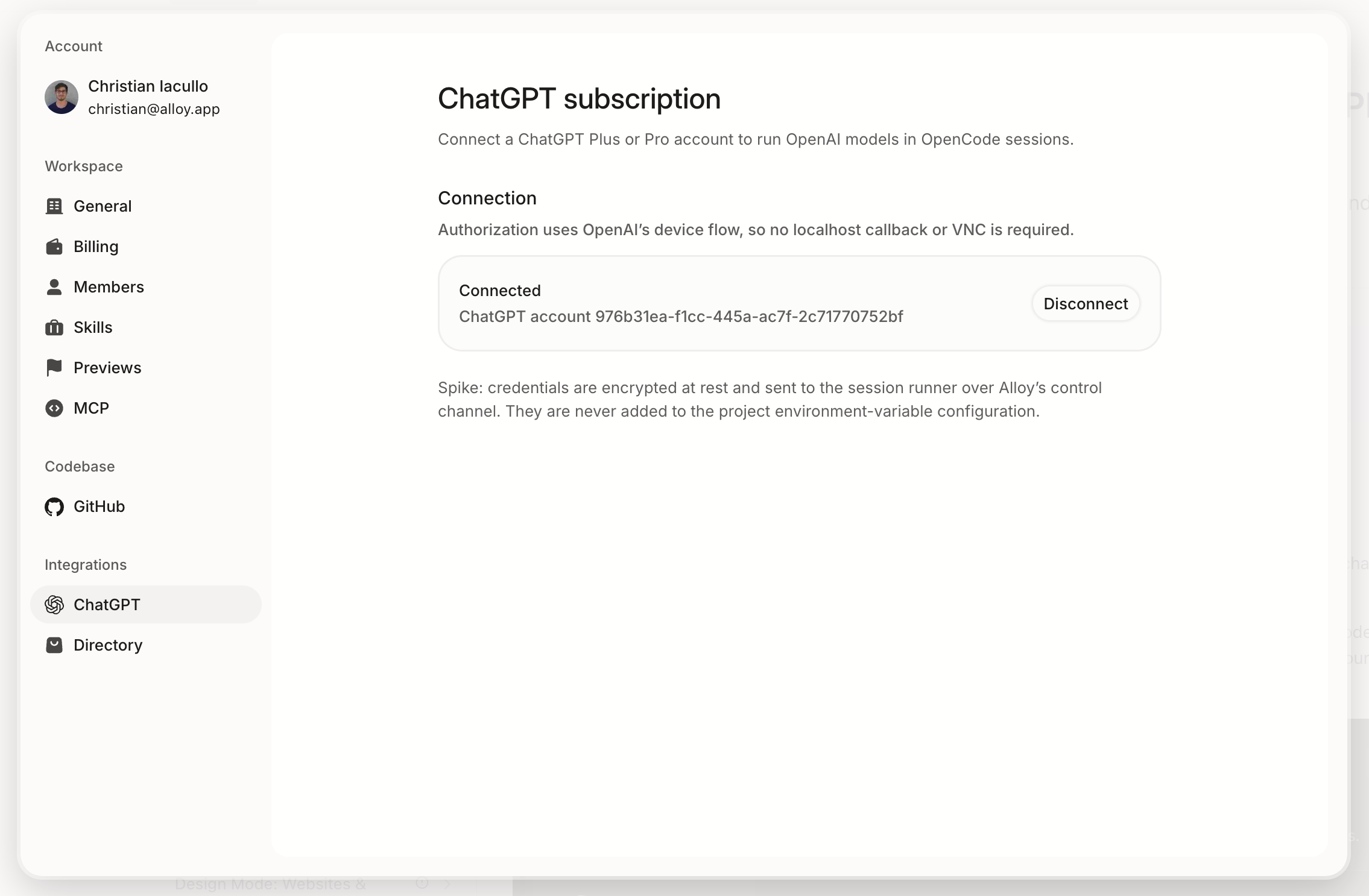
You can disconnect the subscription at any time from the same settings page.
How to use your ChatGPT subscription
Once connected, choose a supported OpenAI model in Alloy as usual. Alloy routes supported OpenAI model usage through your ChatGPT subscription in prototype and dev sessions.
- Usage is subject to the limits of your ChatGPT plan.
- Non-OpenAI models continue to use their existing usage path.
- If you reach your ChatGPT usage limit, Alloy does not automatically spend Alloy credits.
- The subscription connection belongs to you and is not shared with your workspace.
Security and access
Alloy encrypts your ChatGPT credentials at rest. Current credentials are sent to the session runner over Alloy's control channel and are never added to your project's environment-variable configuration.
Your ChatGPT connection is associated with your individual Alloy account. Other members of your workspace cannot use or manage it.
How to disconnect ChatGPT
- Open ChatGPT subscription settings.
- Click Disconnect next to the connected account.
- Confirm that the connection status changes to Not connected.
Disconnecting prevents new Alloy sessions from using your ChatGPT subscription. You can reconnect at any time by repeating the device authorization flow.
Troubleshooting
Device authorization is required
If Alloy asks you to enable device code authorization, return to ChatGPT Settings > Security and login, enable device code authorization for Codex, then start the connection again.
If Alloy continues to show a pending device code, cancel the attempt and start the connection again after confirming that the setting is enabled.
The connection expired or was revoked
Open the ChatGPT integration in Alloy and reconnect your account. If needed, disconnect the existing connection first and repeat the device authorization flow.
Your ChatGPT usage limit was reached
Wait for your ChatGPT allowance to reset, or select a model that uses Alloy credits. Alloy does not switch to Alloy credits automatically.
The wrong ChatGPT account was connected
Disconnect the account in Alloy. Sign out of the incorrect ChatGPT account, then reconnect and complete device authorization with the account that has your Plus or Pro subscription.